Wednesday, 4 December 2013

Top 10 Best Free Messaging or SMS Apps for Android iPhone and Windows


Text messaging was a big surprise for the mobile phone producers of the world. Many of them did not even mention that their phone had an SMS function in their instruction manuals. Then came the Internet where instant messaging became popular, but social media such as Facebook destroyed most online chat rooms and instant messaging was forgotten once again. Now we have a mixture of both, because people are able to instant message a person on their phone in a very similar way that they send an SMS text message. This explains why messaging and instant messaging apps are so popular; here are ten of the most popular messaging apps.
best-messaging-apps
  

1. Nimbuzz

This app is packed full of features, and if they only made it a little more sophisticated then it would be a world beater. It is able to make video calls and voice calls. It also gives you access to chat rooms and has IM functions too. You can play games on it and you can buy credits to call landlines, although why you would do this when you have a mobile phone in your hands is a mystery, but the option is still there if you need it.

2. Rounds

This is a video calling app that you can use with your iOS or Android, and it allows for real-time messaging. It allows for interactive activities including video chatting, text messaging, interactive game play and interactive video watching. It offers a different video chatting experience by adding more interactive features than most do, which makes it a good personal use video chatting and messaging app.

3. Google Hangouts

The text function on this app has replaced Google Talk, even though the text function is a little basic. You may make free conference calls on this by having numerous people within your video or audio call. And, you may do most of their functions for free.

4. Voxer

The fact that this app applies so much dedication to voice messaging is one of the main reasons why it is not just viewed as yet another chatting app. It allows you to play back voice messages that you have received, even though the voice chatting functions are all streamed live.

5. Skype

This is the most popular chatting app on the list. It has a strong interface, and is known quite widely. This is good because it means more people are likely to have Skype and so are able to talk to you on it. You may use simply the voice function, or you may use the video calling function too. It is also available on most platforms including on desktop platforms, plus as a communication client, it is pretty reliable.

    6. iMessage and FaceTime

    Both of these apps make up a complete service. The two are supposed to form one big app, but nobody has seen fit to meld them yet, even though they have 250 million users and 2 billion messages are sent per day. The sheer numbers of this Apple-only app are enough to convince most people that the app is worth a try.

    7. Snapchat

    This is a popular messaging app that Facebook soon released its own version of. Its best feature is how quickly it allows a user to share photos as well as messages. From start to finish it takes less than ten seconds to get one image from one phone to another. Photos and messages may also be presented as stories which do not expire in the same way that regular messaged images often do. 

    8. Viber

    This was created from the ground up as a mobile app, which means it is better suited to most mobile phones. This is great for video chats and it very reliable too. It is stripped to basics when it comes to IM functions, but it is not really to the apps detriment. They have also started offering a premium service too, and have created a desktop app too so that people may communicate between mobile phones and desktop computers.

    9. BBM

    There is an Apple-only app on this list; it seems only fair that there is a Blackberry-Only app. however, this year it was also launched on the Android and iOS too. It is a basic app but is very popular with Blackberry users, and has some pleasingly simple and basic voice and video calling functions, along with some nice IM functions too.

    10. ChatON

    This fun little app is full of weird but original ideas and features. It is not the easiest app to control or use, but it is by no means difficult to understand, use or learn to use. It even has a translation service that allows you to chat (text-chat) with other people who are not using the same language as you. This app was developed by the technology company Samsung.


    Tuesday, 3 December 2013

    How to Create Windows 8 USB Recovery Drive


    If you don't want to mess with your computer creating a windows recovery Drive and Disc is the first important thing that you must do as soon as you complete windows installation . Recovery discs and drives can help you to fix all the problems caused on your windows computer by bad-files,problems cased in windows due to hardware failures,and can even help you when the system doesn't start-up normally. Here in this post we are covering on creating USB recovery drive.
    windows+8+recover

    Before you get ready to create USB Recovery Drive:

    Here are few things that you should check before creating the USB recovery drive for your windows 8 computer.
    • You should check if there is already Recovery partition present on your computer, Because to create a USB recovery drive there should be a recovery image present on your computer.So to check for the recovery image on your computer.
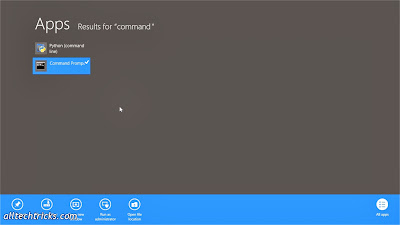
    • Open Command Prompt with Administrator rights.(Search for Command in start menu, Right click on command prompt and hit on "Run as Administrator")
    command+2
    Enter the password if you are asked to continue.
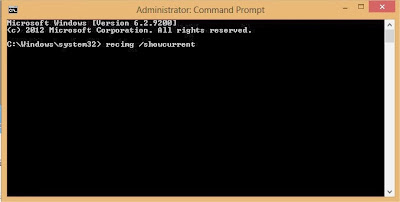
    Now enter this command on your command prompt recimg /showcurrent and hit enter.As shown in below screen shot.
    comand+3
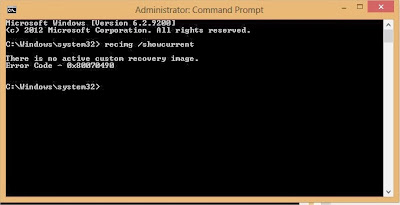
    If you got the error the messaging saying that "There is no active custom recovery image" as shown in below screenshot then you must create a recovery image on your computer. If there is already a recovery partition then you  can directly head to create to usb recovery drive.
    command4
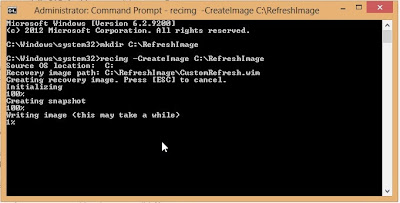
    As there is no recovery image on your computer present, we should create one. We can create new recovery image by entering these two commands one by one
    • mkdir C:\RefreshImage  and hit enter
    • recimg -CreateImage C:\RefreshImage  and hit enter
    After entering these two commends you will be able to see the process of creating recovery image on your computer as shown in screenshot below.You can delete the recovery image from your computer to save the memory after completing of creating the USB Recovery drive.
    command5
    After completion of creating the recovery image we can now jump to create the USB recovery drive!

    Creating Windows 8 USB Recovery Drive

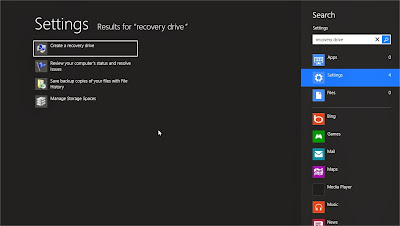
    To create a recovery drive search for the "recovery drive' in windows search. and click on Create a recovery Drive. (Note you must have administrator rights, it might ask you password.)
    recovery+drive
    • When the tool is opened check the box to Copy the recovery partition from the PC to the recovery drive. And hit Next
    • Now Insert the USB drive into USB port, make sure that there is no information stored on your USB, as the recovery tool will completely wipe out the data stored on USB. 
    • And then select the usb from the list of available USB drives for storing the recovery image.And Hit next.And then Hit on Create.
    • That's it! You have created Windows 8 Recovery image.You can now use that to refresh and reset your windows 8 computer.
    • If you want to store the recovery image on your computer then you can hit on "Finish" or if you want to save the space you can delete the recovery image by hitting on "Delete".
    • After everything is done you can remove the USB from your computer.


    Access Facebook on any Mobile Without The Internet


    Do you have an old phone like Nokia 1100 ???

    Don’t Worry You can Use Facebook in it
    Here is an Article about it read it and rate.

    Do you have an old phone like Nokia 1100, and no reader can do more than just a phone? Or are you stuck in a remote place where no internet or any other form of data (EGDE/GPRS/3G) and the link?
    This is not a problem. You can continue with your Facebook in India (# * or Lithuanian) by dialing * 325 # on your mobile phone – this service requires no data or Internet plan that will work on phones from the Stone Age. 
    A brief overview here:


    Use Facebook without the Data Plan
    Facebook India has partnered with Fonetwish to bring Facebook on every mobile phone without requiring any apps or even the Internet. 
    In partnership with Fonetwish Facebook India to take any phone or the Internet without running the program.

    Dial *325# number, enter the username and password, select Facebook and use Facebook, there are some basic commands to perform various tasks, online to chat with friends at home and new additions to the list of your friends and more

    If the interface to the Unix shell, such as Facebook, and will be very similar. Fonetwish says the service now, Airtel, Aircel, Tata DoCoMo and the idea is not accessible by users in India.

    Reasonable prices – you only need to pay 1.00 fee per day for unlimited access..