Tuesday, 26 November 2013

How to Create Wifi Hotspot in Windows 7 and Windows 8 -Best ways (PC/LAPTOP As Router)


If you are one who looking to convert your PC as Wifi Hotspot then you are done.Here in this article We listed best 2 ways to convert your laptop as Wifi router.Once you turn you PC as WiFi router you can connect devices such as Android, another laptops etc. 

how-to-create-a-wifi-hotspot

Advantages of converting your laptop to a wifi router.
  • You can Enjoy internet in your wifi devices, any where you want but depend on your laptop wireless range.
  • Get rid of sitting at one place with wired internet connection.
  • If you have smart phone then you can get access to internet on your mobile.
There are numerous of method to turn your laptop a wifi spot (Windows 7 and 8 only),
Such as By command promote (only in windows 8) and by installing 3rd party software compatible with both.


First Method-
You need to follow below steps care fully in order to make your laptop wifi router successfully.
Step.1: Open run (windows key+R), type ncpa.npl.

Step.2: A new window is in front of you. There select wireless Network adapter and sharing center and select properties.


Step.3: In wifi properties Select share, followed by Allow Others Network users to connect.
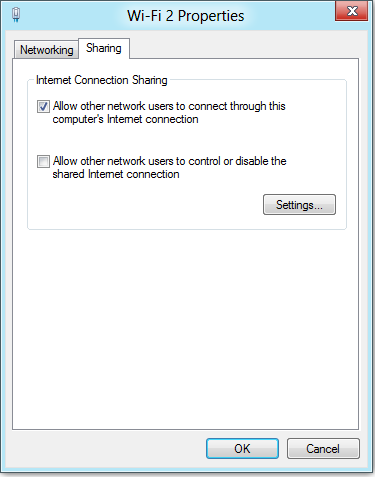
Note- Never Tick 2nd Option.
Step.4: Now Open Command Promote As administrative.
Step.5: Don't worry by looking in below Command promote codes in picture, those are very simple.
             You need to copy and paste below command in command promote.
"netsh wlan set hostednetwork mode=allow ssid=”techbymak” key=”techbymak”"

You will see SSid which is actually your network name, which we are going to create.
Step.6:Now you need to start the network By using below command.
"netsh wlan start hostednetwork"
Every thing is done. Now you can observe your laptop is working like a router.
Note:To check How many Devices Are connected to your router you need to enter below command in command promote.
"netsh wlan show hostednetwork"
This was the first method to make your laptop a router.

Second Method:

We are using a Software in this method to make laptop Wifi router, this method is compatible with both windows 7 and 8.The name of the software is Virtual Router.Download the software and install it.( once you downloaded it will come in zip format so extract it)

When you have done all these make sure are connected to the network you want to share and then launch VirtualRouterPlus.exe.
Remember - Run the .Exe as administrative.

Let's Create A Network.

  • In this method we are using Virtual router so it is essential to create a new network.
  • It is similar to 1st method, here SSid also means the name of the network which we are creating, you can enter what you want.


  • If you want you can enter Password, it is important to prevent others to use your internet service. 
  • Now here you need to indicate which network is to be shared and then click on start Virtual Router.
I hope you guys like the article and feel useful for you .If you have any problem in above steps feel free to comment below we ill help you out.


Monday, 25 November 2013

How to Protect WiFi network in Windows 7 and 8


Many of us are always worried about anyone misusing our home Wi-Fi network, without our notice. This problem may come especially in the case of neighbors who may hear or just guess our WiFi passwords and use them with complete access. They use and you get the bill. Not at all fare enough. So, in order to protect yourself from this, and keep your WiFi secure and safe, follow a few very simple steps and be peaceful with respect to your WiFi network.
how+to+secure+wifi+network

Step by Step Process:

  • Connect to your wifi network like you normally do. Click on the START button and type 'cmd' in run to start the MS DOS prompt on your computer. In CMD, type the below command.
ipconfig/all (you can see the example below)
ipadress
  • Within the output screen look for Wireless network connection, under that look for IP address mentioned with Default Gateway entry. This is supposed to be the ip address of your wifi router. Here in the example, i have blurred it, but within your system, you will find it. Lets for example consider 192.168.0.1.
cmd2

                
  • Copy the IP address with the default gateway and Start your web browser. Put this IP address in the URL adress bar. This will direct you to connect to your WiFi device settings. Most of the Wifi routers may ask you admin name and password. Depending on the manufacturer of your device the names and passwords may vary. But most of the routers have a default name and password, "admin" as the user name and "password" as the password. Or "admin" as the user name and "admin" as the password.
login
  • You can login successfully and then you will be allowed to change the settings related to your wifi connection. Enable encryption on your network so that it will stay password protected. By doing this all your data is secured. It is always a good option to enable WPA2-PSK on your wifi network instead of WEP or WPA security. This is because WPA2 security with a strong password is proved to be the best and highest security provided on your wifi network.
network

            Must Check: Control PC with Mobile
  • Another most important thing to do is to change the name of the WiFi network also known as SSID. This makes it harder for someone to figure out that the network belongs to you. Though changing the name may not improve the chances of security, but still you need not broadcast it to everyone that you use a particular network for your WiFi. Moreover using a default SSID name which is selected by your service provider may attract the cyber criminal that you are not tech-savy. Just go through your WiFi router settings page to find SSID network name option and change it. 
name+change
  • For advanced users, it is advisable that you enable MAC Address Filtering on your WiFi router manually enter the MAC addresses of all devices(mobiles,laptops,tablets) that you want to connect to your WiFi network. This option will keep most attackers away from your network.
mac

The above steps any how will protect your Wifi network. But one should digest the fact that any motivated cyber criminal can still use various techniques like spoofing to fool your WiFi router. The only way is to keep your IP address safe, and also you should keep changing the WiFi access password on a regular basis and make sure you choose a lengthy password with a combination of letters,numbers and symbols.


Sunday, 24 November 2013

Block Unwanted Calls and SMS in Android Phone


Android Mobile !! an Awesome gadget in today world.I know here you are to know How to Block unwanted calls in your mobile for free. Because daily you get many calls from friends,family etc. I am sure that not all the calls are important. You get some calls from telemarketers,spammers etc which are annoying.!!


Block Unwanted Calls and SMS in Android Phone
But know you can block unwanted calls on your Android mobile by using manual method and by using some apps.Here we listed some best apps that can block unwanted calls and saves your time.

Manual Method:

Manual Method to block calls on your android mobile is different for different mobiles.So here its not possible to go through all android devices.So I suggest you to go for the app that can block unwanted calls and SMS.

Apps to Block Unwanted Calls:

1 Mr.Number

Mr.Number is a free app that can  block unwanted calls  and messages on any android device.This app has remote look up feature to find unknown number in US.

Some features of Mr.Number
  • Block Call and SMS from specific person,Area.
  • Saves your time by blocking Calls from Tellemarketres and debt Collectors
  • Reverse look number feature
  • Report Spam calls and SMS to Other users.

 2. Call Blocker

Call Blocker is another best android app to block unwanted calls.This app is available in free version and paid version.If you can upgrade to paid version you can get some extra benefits.
  • Block Unwanted Calls and send auto Reply
  • Protect your SMS and call logs
  • Back up your Contact to server.So that you cannot lost them
Call Control is used by more then 5 million globally to block unwanted calls and SMS.Your mobile rings only when you want..!!
  • Block Spammer calls automatically
  • Block Calls from specific area using Area Code.
  • Block text and picture messages
  • 100% Ad free